
v1.91+
To find the "Maps" menu...
Select the "Maps" button located in the lower-left corner of the screen.
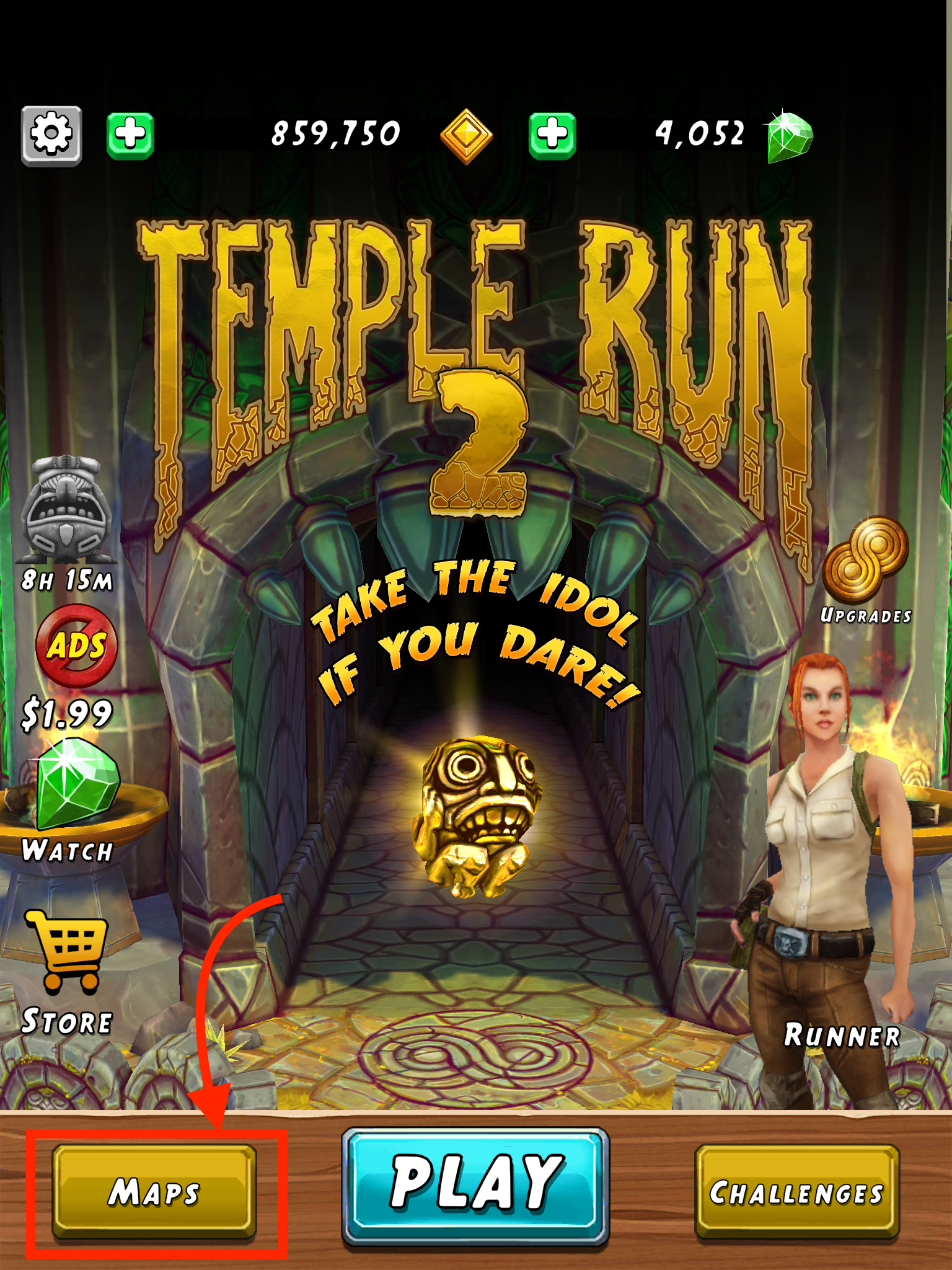
To select or change the map...
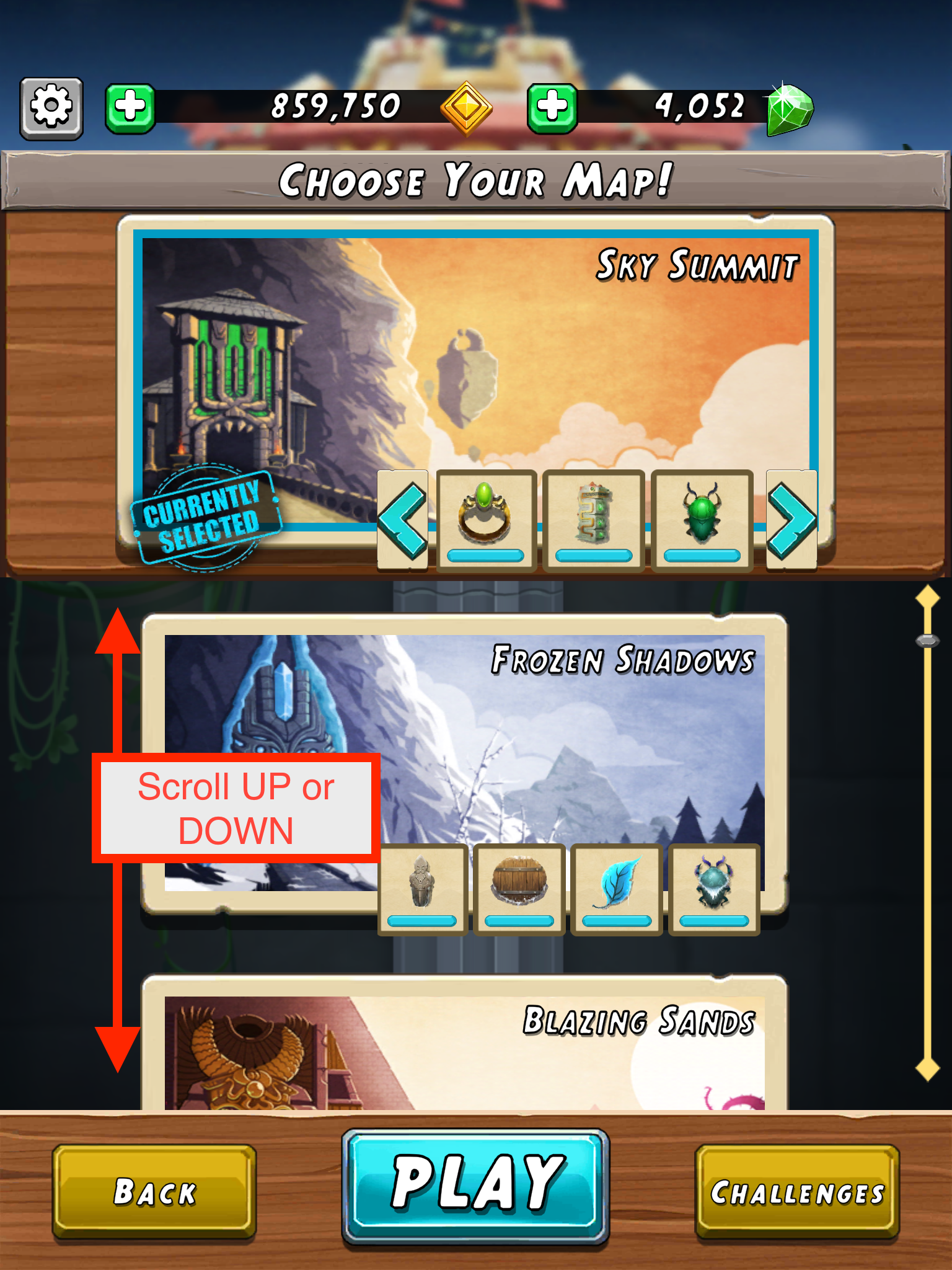
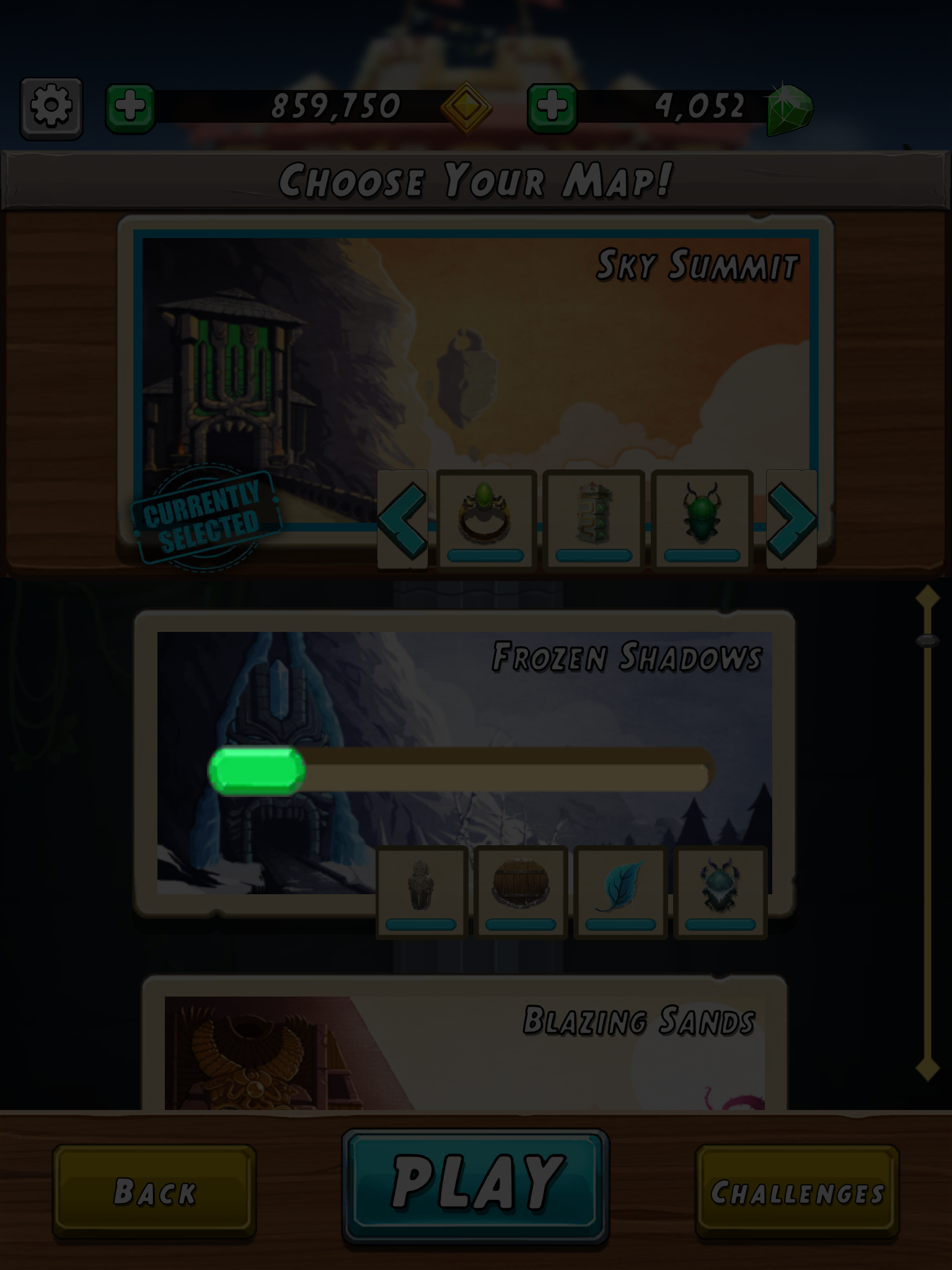
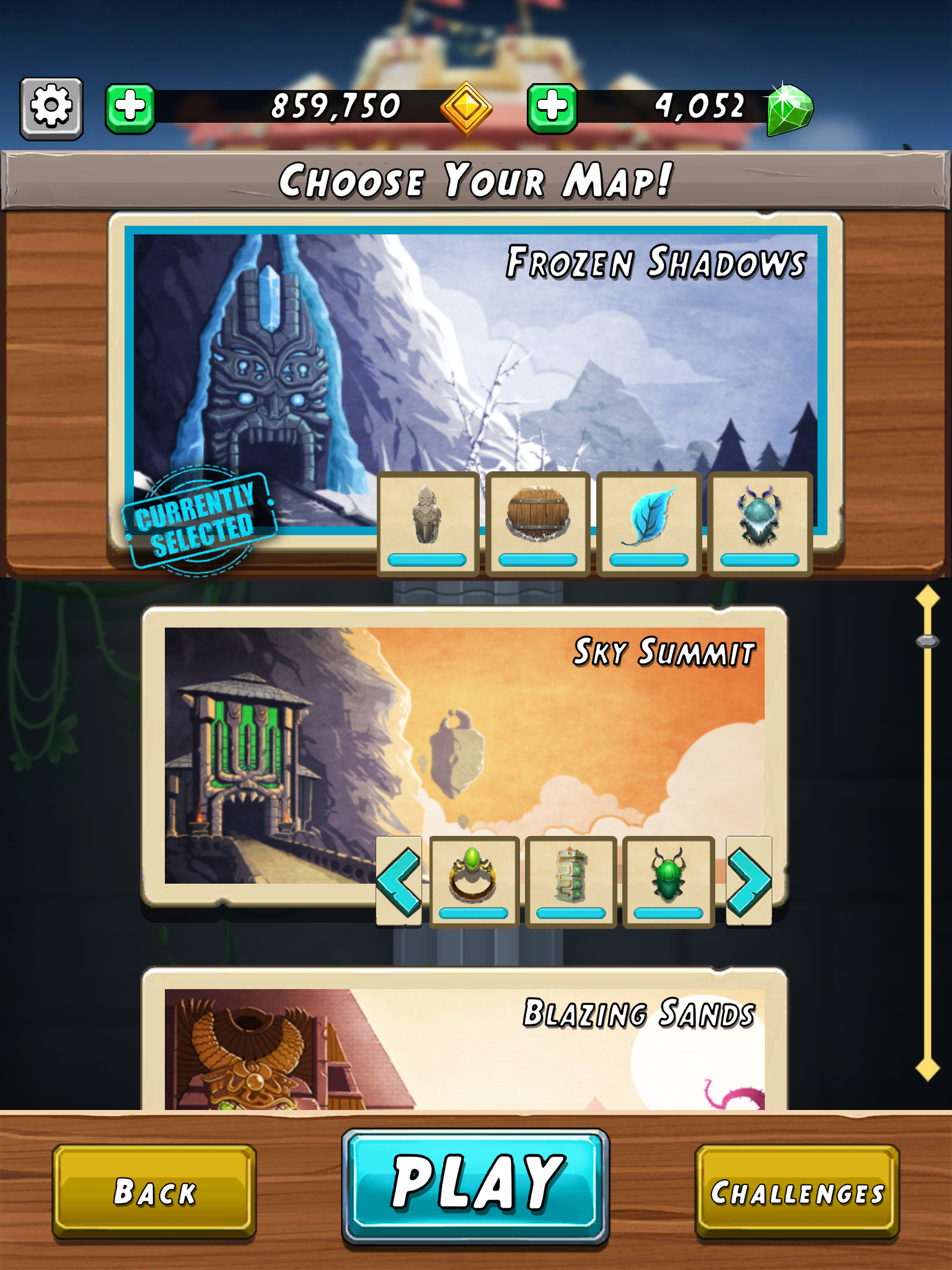
| 1) Scroll through the list of maps that you have available | 2) Select the postcard image for the map that you wish to open. Wait a few seconds for the loading bar to complete. | 3) The postcard for the map you've selected will now appear on the wood grain panel at the top of the screen. |
 |
 |
 |
To start the run, tap the blue Play button from the maps menu.
v1.80 - v1.90
Note: This information will be achieved soon.
To find the "Maps" menu...
|
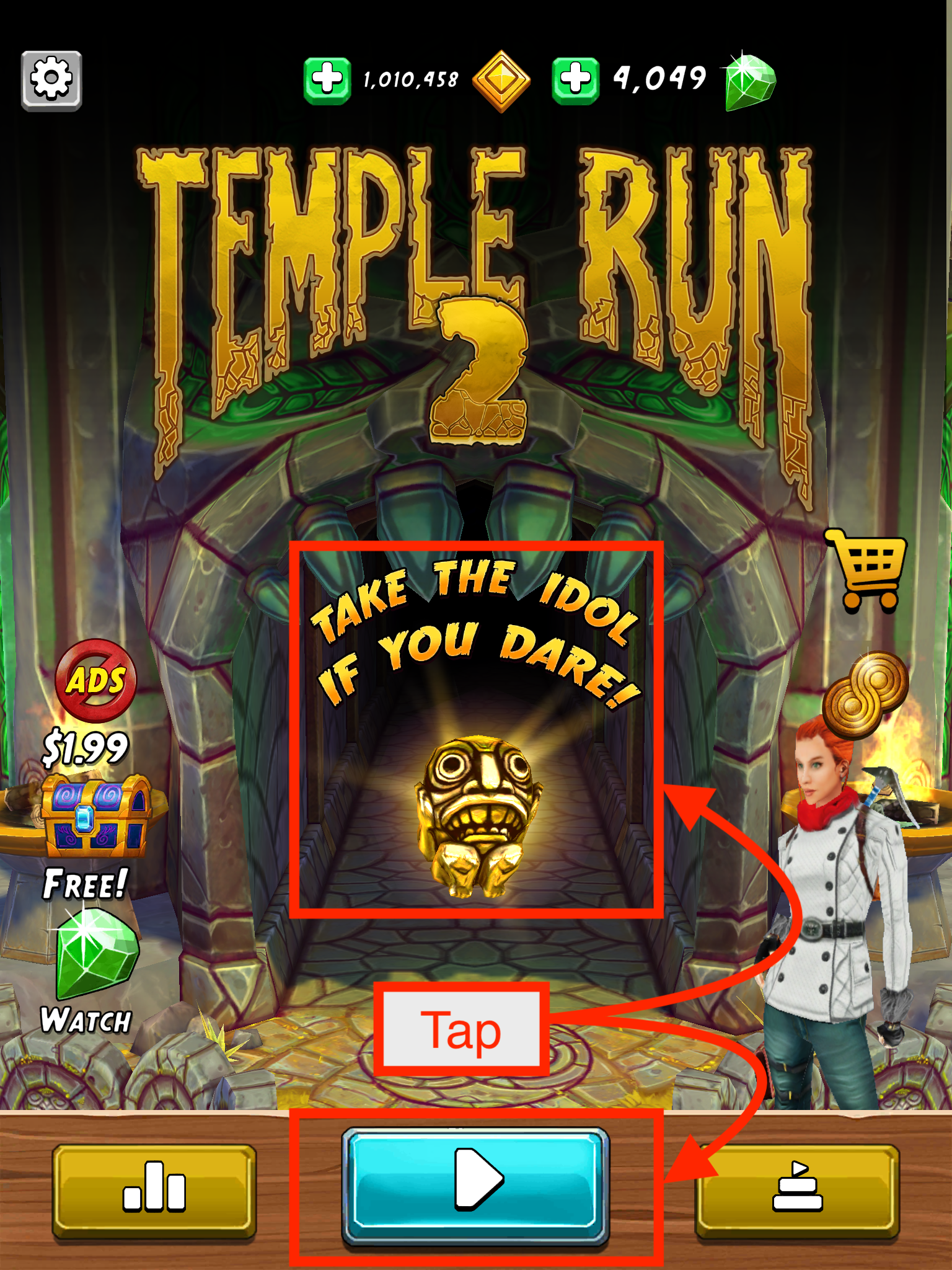
1) Tap the golden idol or play button on the main screen.
|
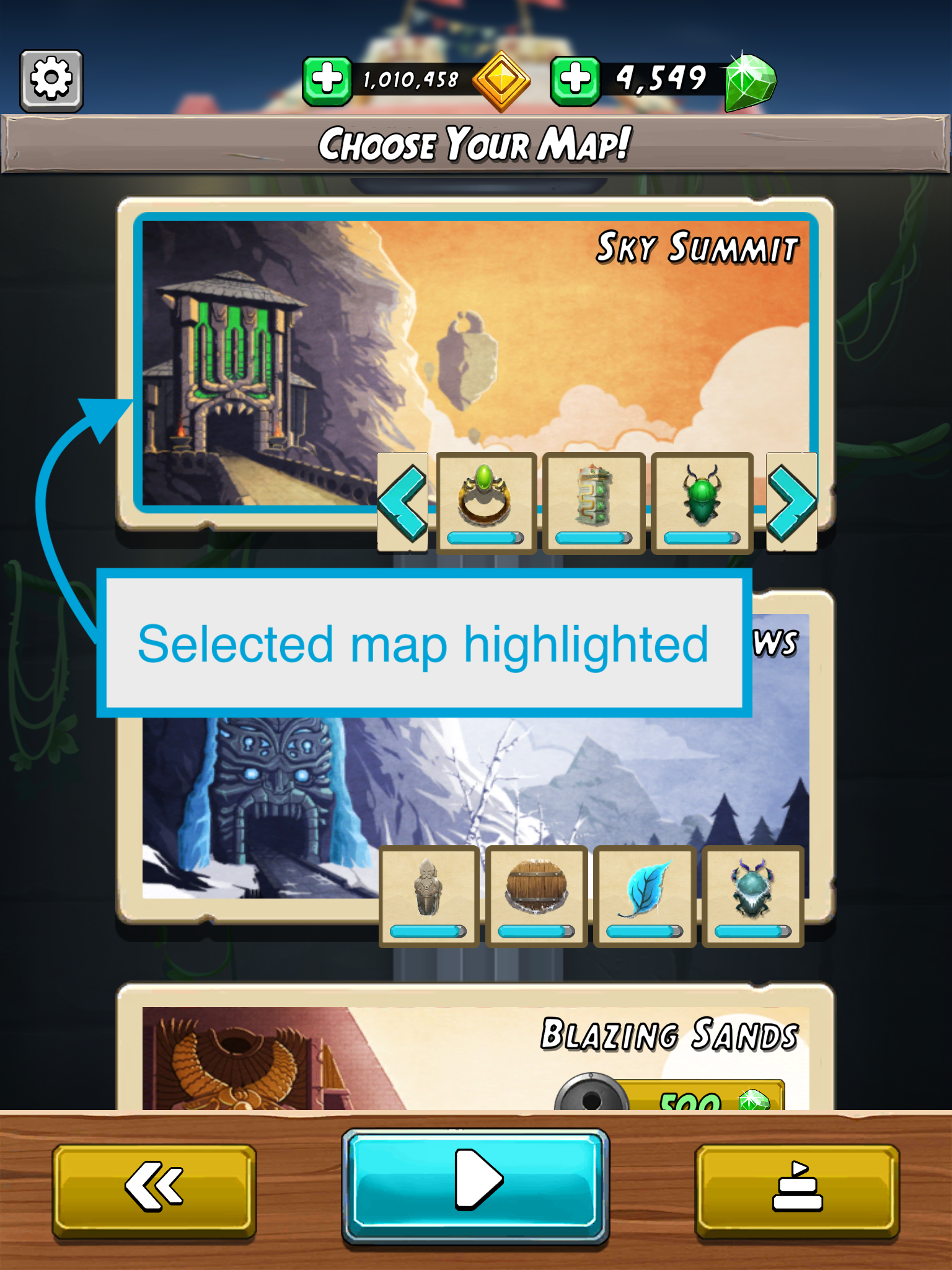
2) The map that is currently selected (or recently played) will appear highlighted in blue.
|
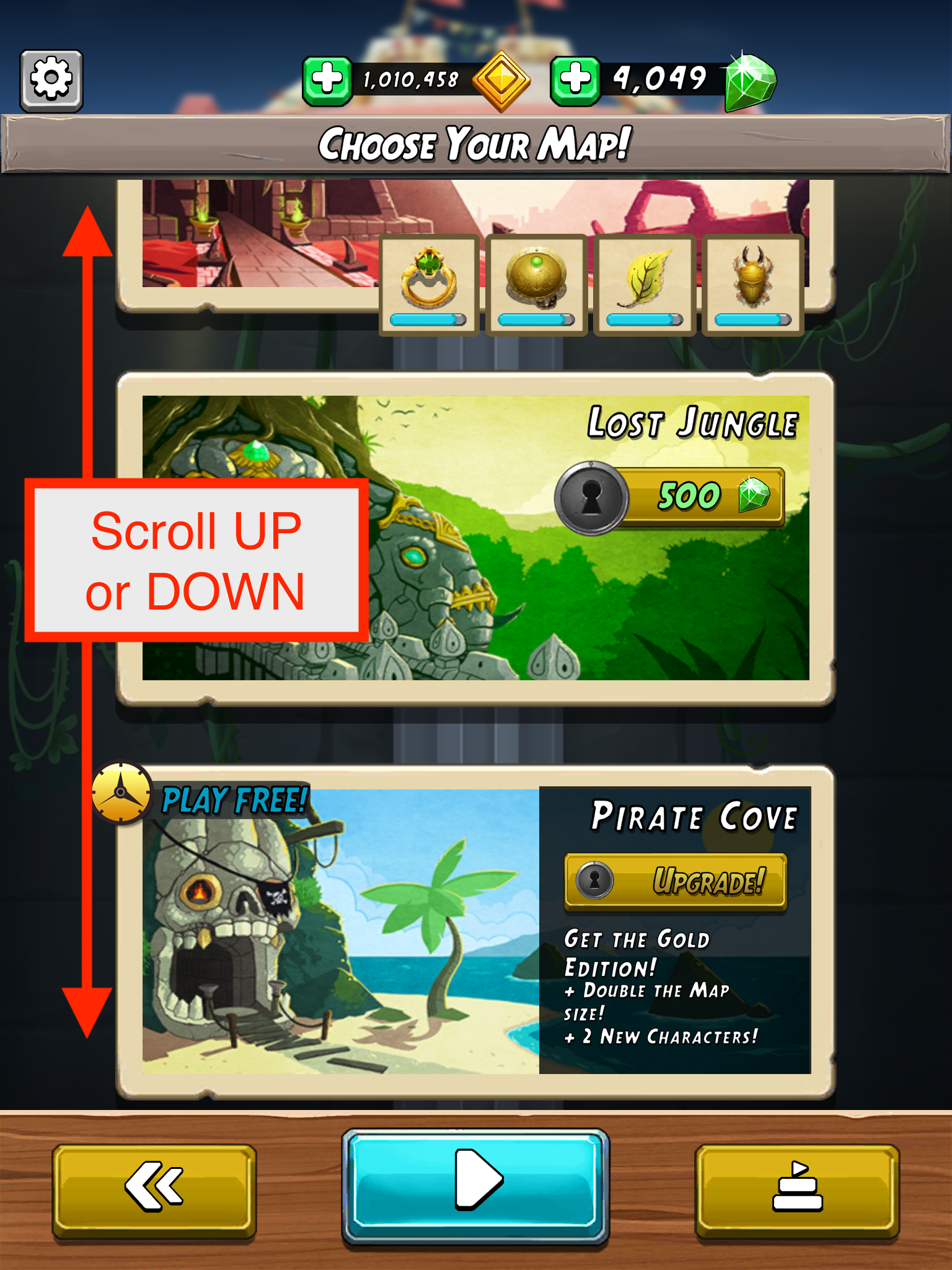
3) Scroll up or down to see the maps that are available.
|
To select or change the map...
|
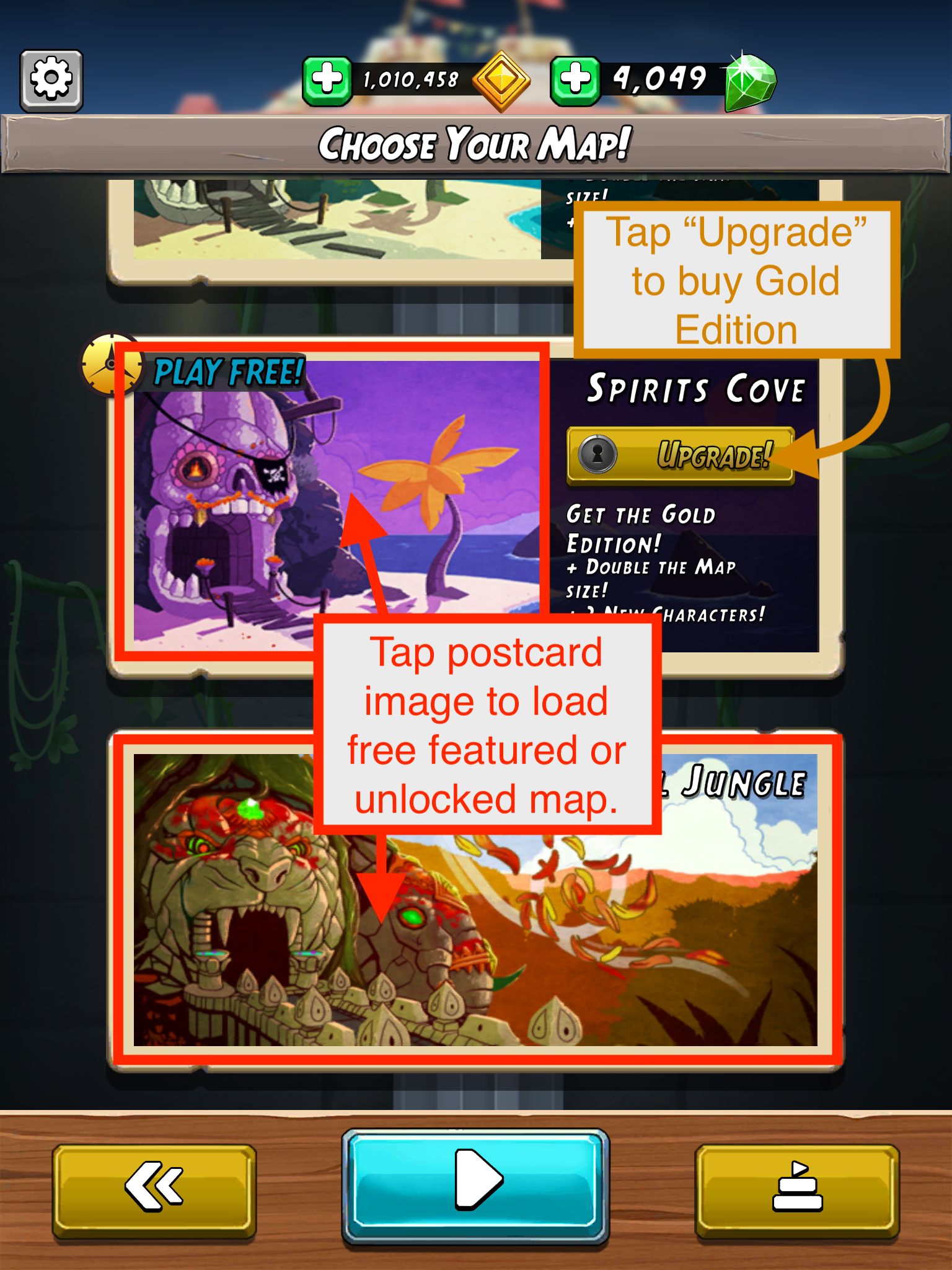
Tap the postcard image of the map that is available for you.
|
The newly selected map will be highlighted in blue as seen before.
|
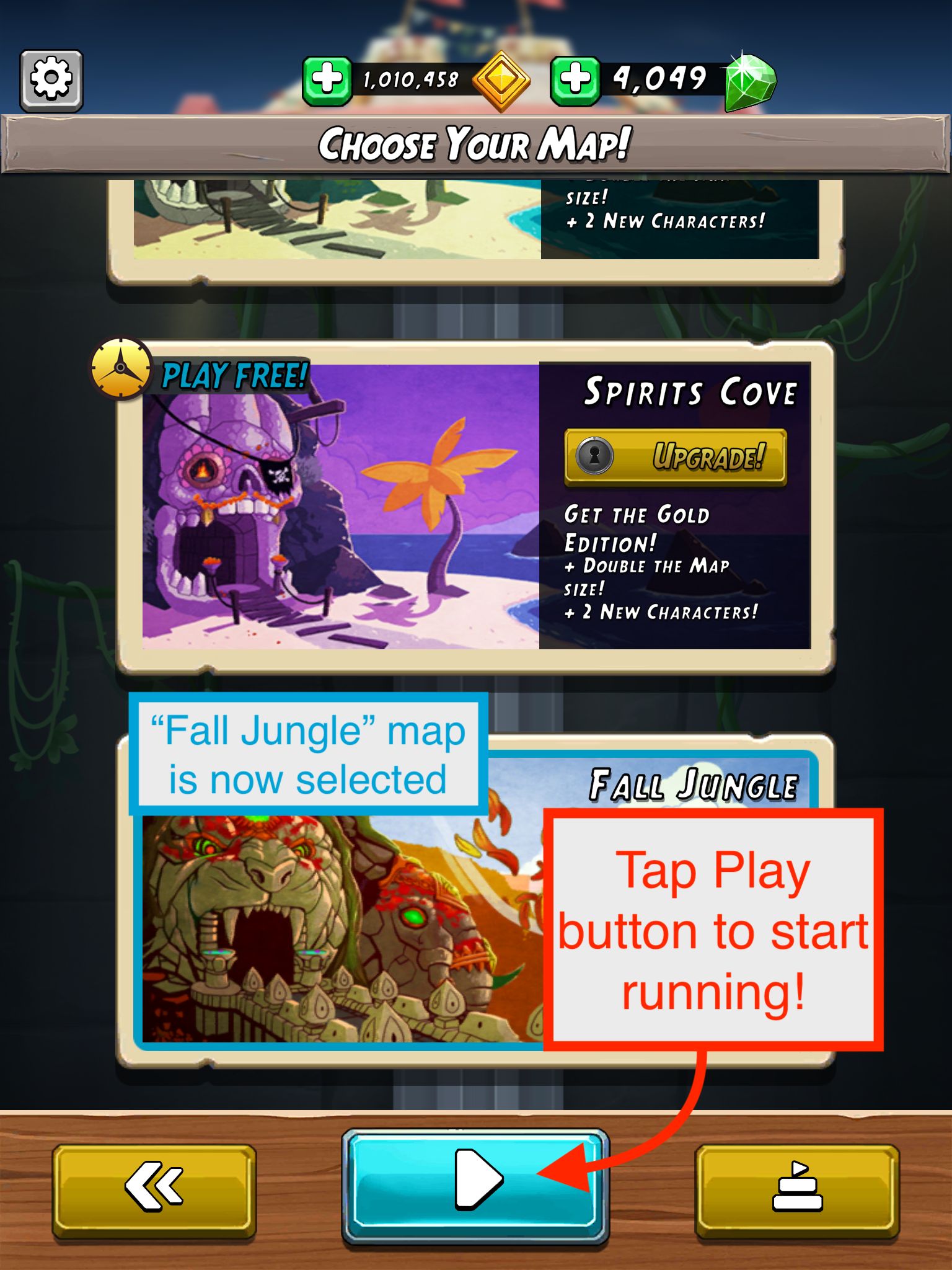
To start the run, tap the blue Play button from the maps menu.
_________________________________
Note: Some maps require spending gems or real currency to unlock them (see Blazing Sands and Lost Jungle for 500 gems, or Pirate Cove and Spirits Cove premium "Upgrade" in the example images on this page). Tap here to learn more info on Map pricing and availability.
Comments
0 comments
Please sign in to leave a comment.